Users Guide
User's Guide: Getting Started
Introduction to the BeWhere One Application
The BeWhere One Application (Portal) is the primary user interface for managing, tracking, and monitoring your valuable assets connected via BeWhere's low-power Mobile Internet of Things (M-IoT) devices.
Designed as a secure, centralized dashboard, the Portal allows enterprise customers and public safety agencies to:
- Visualize: View the real-time location and historical routes of all deployed assets on an interactive map.
- Monitor: Receive instant alerts and notifications based on custom-defined parameters (e.g., geofence breaches, temperature excursions, battery status).
- Manage: Configure device settings, manage user accounts, and generate comprehensive reports for analysis and compliance.
The BeWhere Portal transforms raw data collected by your IoT trackers into actionable intelligence, driving operational efficiency, improving safety, and enabling faster response times across all deployed fleets.
Browser Requirements and Support
To ensure optimal performance, full feature functionality, and the highest level of security, the BeWhere Portal requires a modern, up-to-date web browser.
Fully Supported Browsers The BeWhere Portal offers full support for the current and immediately previous major versions of the following browsers, ensuring all features work without degradation:
- Google Chrome
- Mozilla Firefox
- Microsoft Edge
- Apple Safari
Note on Mobile Devices: The BeWhere Portal is fully responsive and supported on the latest versions of the browsers listed above across both Desktop and Mobile devices.
Troubleshooting and Support If you encounter any feature degradation, display errors, or technical issues while using a supported browser version, please contact our support team immediately to report the issue.
The Login Screen
Access to the BeWhere Portal is secured via a dedicated login screen.
Account Creation and Initial Login
The official URL for the BeWhere Web App is: https://portal.bewhere.com/.
-
Initial Setup: The first-time user account is created by the BeWhere support staff or the administrator account. Upon creation, an automated email is sent from support@bewhere.com containing a link to the BeWhere Web App and the user’s temporary password.
-
Username: The username is always the user’s email address. Please note that the username email address is Case Sensitive.
-
First Login: The very first time you log in, you will be prompted to insert only your new password. After setting the new password, you will need to log in again using your email address (username) and your newly created password.
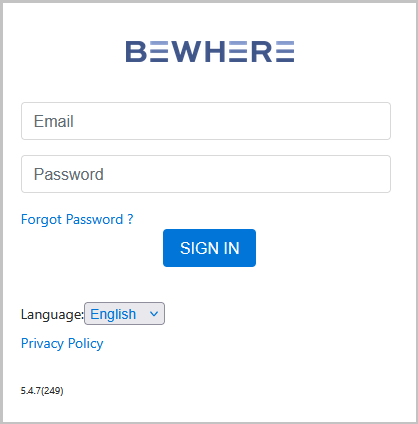
Standard Login Process
To access the BeWhere Portal using your standard credentials:
-
Navigate: Open your supported web browser and navigate to the Portal URL: https://portal.bewhere.com/
-
Email: Enter your registered BeWhere email address (your User ID).
-
Password: Enter the password associated with your account.
-
Language: (Optional) Select your preferred interface language from the dropdown menu. The BeWhere Web App is available in English, French, and Spanish.
-
Sign In: Click the SIGN IN button.
Single Sign-On (SSO) Access
If your organization utilizes Single Sign-On (SSO) through services like Microsoft Entra ID (formerly Azure AD), you will use a dedicated entry point:
-
Note: SSO users should never enter their password on the standard login screen, as their authentication is managed entirely by their enterprise identity provider (e.g., Microsoft 365).
Lost Credentials
If you have forgotten your password, click the Forgot Password? link located just above the sign-in button and follow the prompts to reset your credentials.