BLE Gateway Customer Support Manual
Simple guide for non-technical support staff
Purpose: This guide explains the BLE Gateway settings in simple language and shows the most common customer configurations. Use it to understand what the customer wants, how the gateway should be configured, and what you should look for on the server.
1. Start here: What does the customer want?
| Customer wants... | What to configure | What to expect |
|---|---|---|
| All BLE devices of one selected type | Select the correct Manufacturer ID. Leave MacIds Filter empty. Leave Sensor Triggers empty. | Normal BLE payload is sent for all matching devices. |
| Only a few specific BLE devices | Select the correct Manufacturer ID. Add those device MAC IDs in MacIds Filter. | Only the listed devices send normal BLE payload. |
| Door event | Add the door sensor in Sensor Triggers using type 00. | Server shows SENSORIO1 ON: DOOR CLOSED, Aux5: 1.SENSORIO1 OFF: DOOR OPEN, AUX 5: 0. |
| Temperature and humidity readings | Add the temperature/humidity sensor in Sensor Triggers using type 01. | Temperature and humidity appear in AUX1.json. |
| ToF / distance reading | Add the ToF sensor in Sensor Triggers using type 02. | Distance/range should appear in AUX1.json. If it does not, escalate. |
| Sensor output only, without regular BLE payload | Add the sensor in Sensor Triggers and set MacIds Filter to 000000000000. |
Sensor output is processed, but normal BLE payload is not sent. |
2. Main BLE configuration screen
The most important fields for support are Manufacturer ID, MacIds Filter, and Sensor Triggers.
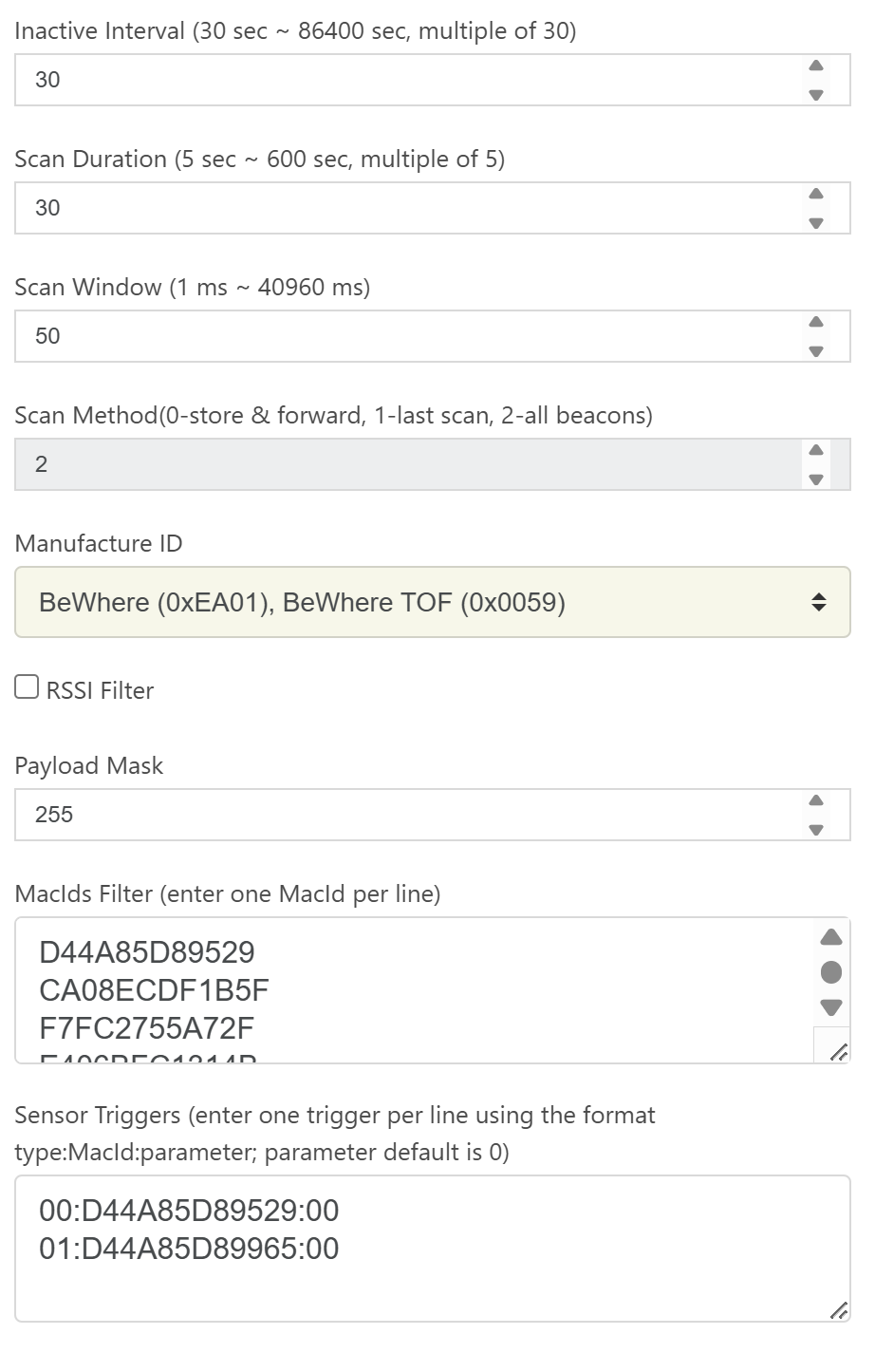
Figure 1. Main BLE Gateway configuration screen.
- Manufacturer ID: Chooses which device type(s) the gateway looks for.
- MacIds Filter: Limits normal BLE payload reporting to specific device MAC IDs.
- Sensor Triggers: Tells the gateway to decode a specific sensor and produce door, temperature, or ToF output.
- BLE Advertising: Makes a BeWhere device advertise as a Bluetooth beacon so a gateway can detect it.
3. Manufacturer ID: choose the device type
Manufacturer ID is a multi-select field. You can choose more than one supported device type at the same time.
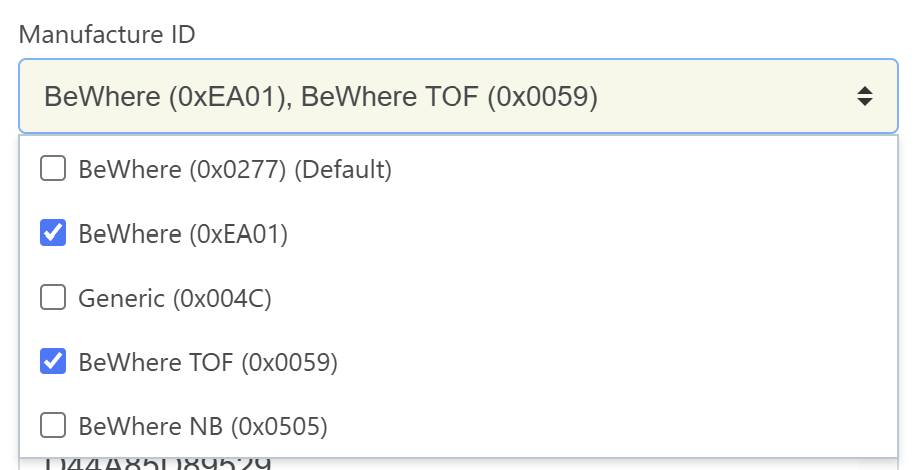
Figure 2. Manufacturer ID supports multiple selections.
- BeWhere (0x0277) (Default): Used when BeMini, BeTen, BeBat, BeSol, and BeWired devices are converted to BLE devices.
- BeWhere (0xEA01): Used for the white BeWhere sensor. It can be a door sensor or a temperature sensor, depending on configuration.
- Generic (0x004C): Used for Tenna devices.
- BeWhere TOF (0x0059): Used for the black ToF sensor that measures distance.
- BeWhere NB (0x0505): Visible in the list, but there is currently no implementation.
4. Sensor types
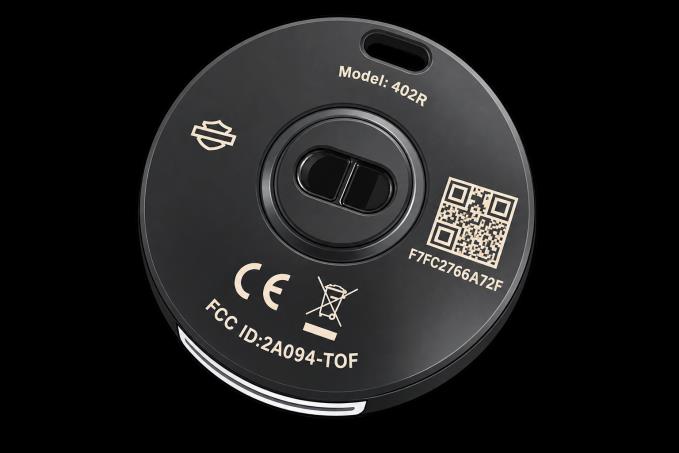
Figure 3. Black BeWhere TOF sensor. It is used to measure distance/range.
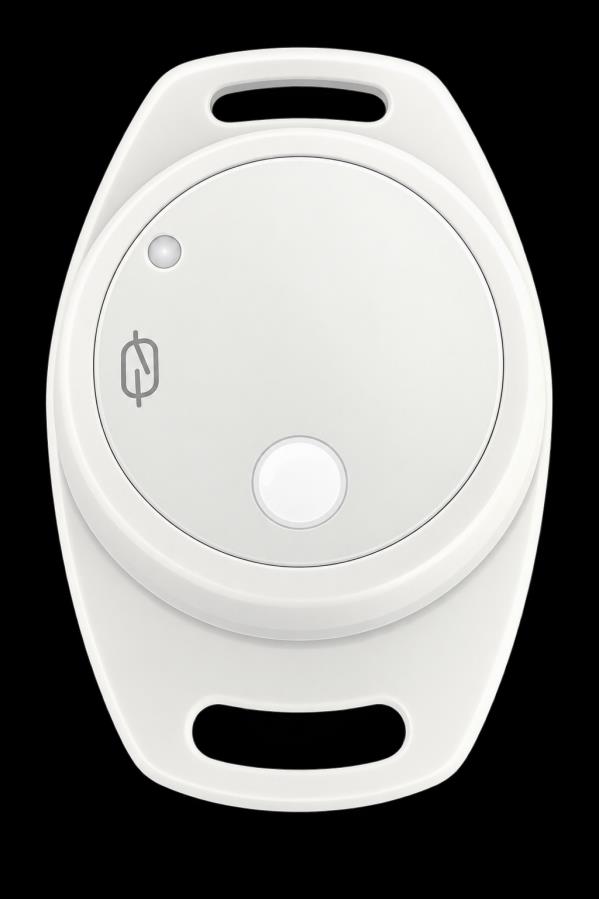
Figure 4. White BeWhere BLE sensor. It can be used as a temperature sensor or a door sensor.
5. BLE Advertising
If a BeWhere device needs to act like a BLE beacon, BLE Advertising must be turned on. If it is off, the gateway cannot scan it as a BLE beacon.
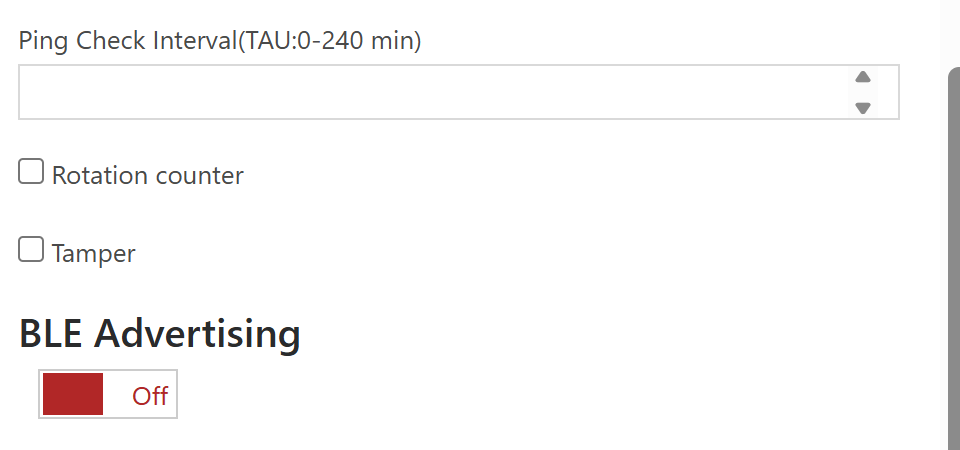
Figure 5. BLE Advertising setting used to make a BeWhere device act as a Bluetooth beacon.
6. Sensor Triggers
Sensor Triggers tell the gateway to produce sensor-specific output. Use this format:
Type:SensorID:00
The last value must always be 00.
00:SensorID:00: Door sensor trigger. The server showsSENSORIO1 ONorSENSORIO1 OFF. AUX 5 shows the door state as 0 or 1.01:SensorID:00: Temperature/humidity sensor trigger. The temperature and humidity appear inAUX1.json.02:SensorID:00: ToF trigger. The distance/range should appear inAUX1.json. If not, escalate.
7. Common customer use cases
Use Case A: Send regular BLE data for all devices of a selected type
- Select the required Manufacturer ID(s).
- Leave MacIds Filter empty.
- Leave Sensor Triggers empty unless the customer also needs door/temperature/ToF output.
Expected result: Regular BLE payload is sent for all matching devices.
Use Case B: Send regular BLE data for only specific devices
- Select the required Manufacturer ID(s).
- Enter the allowed device MAC IDs in MacIds Filter, one per line.
Expected result: Only the listed MAC IDs send normal BLE payload.
Use Case C: Sensor Trigger plus regular BLE payload for the same device
- Add the sensor in Sensor Triggers.
- Also add the same device MAC ID in MacIds Filter.
Expected result: The same device produces both its normal BLE payload and its sensor output.
Use Case D: Sensor Trigger only (no regular BLE payload)
- Add the required sensor(s) in Sensor Triggers.
- Set MacIds Filter to
000000000000.
Expected result: Sensor output is processed, but regular BLE payload is not sent.
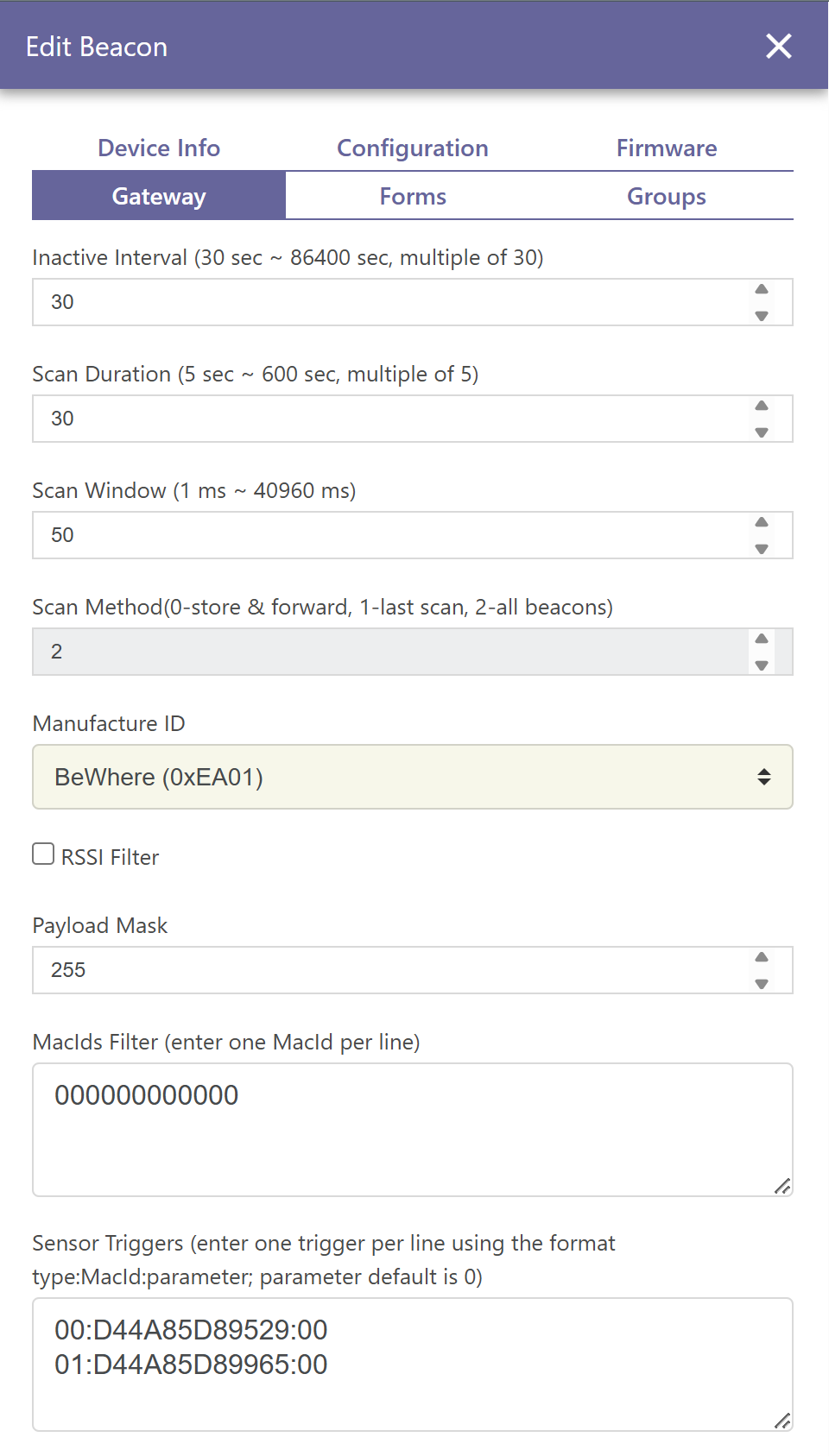
Figure 6. Example of a Sensor Trigger-only configuration: the sensor is configured in Sensor Triggers and MacIds Filter is set to 000000000000 so normal BLE payload is not sent.
8. What support should look for on the server
Look at AUX1.json for temperature, humidity, and ToF sensor data. For example:
[
  {"zone_id1":"d69dfce7fd8a","temp":25.8,"humidity":"21%"},
  {"zone_id2":"dcce3e42c3bb","tof":1.836}
]
- Type 01 (temperature/humidity): The entry identified by
zone_id1contains thetempandhumidityreadings. - Type 02 (ToF): The entry identified by
zone_id2contains thetofdistance reading.
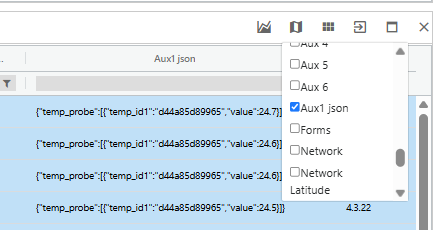
Figure 7. Configured BLE temperature sensor data displayed in AUX1.json.
Door sensor: Look at Event Type in server history. A configured door sensor shows SENSORIO1 ON or SENSORIO1 OFF. AUX 5 shows the state as 0 or 1.

Figure 8. BLE door sensor trigger displayed in server history as a SENSORIO1 ON/OFF event.
9. Simple troubleshooting
- Customer says "my gateway is not finding the sensor." Check whether the correct Manufacturer ID is selected and whether the sensor is advertising as BLE.
- Customer says "I only want these three devices." Make sure those MAC IDs are listed in MacIds Filter.
- Customer says "I want temperature and humidity but not the normal BLE payload." Use a Sensor Trigger with type 01 and set MacIds Filter to
000000000000. - Customer says "I want door events." Use Sensor Trigger type 00 and then check the server for
SENSORIO1 ON/OFFand AUX 5. - Customer says "I want distance / ToF data." Use Sensor Trigger type 02. If distance does not appear in
AUX1.json, escalate.
10. When to escalate
- ToF trigger data does not appear as expected.
- The customer asks for a configuration that is not covered by the use cases in this guide.
- The gateway is scanning, but there is still no sensor output and the basic configuration looks correct.
- The customer asks for behavior that conflicts with this manual.
11. One-page cheat sheet
- Manufacturer ID = choose the device type.
- MacIds Filter = choose which specific devices send normal BLE payload.
- Sensor Triggers = choose which devices create door/temperature/ToF output.
- Door sensor = type 00 =
SENSORIO1 ON/OFF+ AUX 5. - Temperature/humidity sensor = type 01 =
AUX1.json(tempandhumidity). - ToF sensor = type 02 =
AUX1.json(if missing, escalate). - Sensor Trigger only = MacIds Filter set to
000000000000.